4 min read
How to Create a Crypto Payment Link in 2 Minutes (No Code)
How to create a crypto payment link in 2 minutes, no code: set a price in USDC, pick networks, share the link or QR code and get paid to your wallet.
A crypto payment link is a checkout page you can send to anyone: in an email, a DM, an invoice or a QR code. To create one, you set a price, choose which networks and tokens you accept, and copy the link. With TidePay that takes about two minutes, needs no code, and every payment goes straight to your own wallet.
What you need
A wallet that receives the money: an EVM address (one 0x address works on Polygon, Arbitrum, Base and Optimism) and/or a Solana address.
A free TidePay account. You pay 1% per successful payment, with no monthly fee.
A product and a price, for example "Logo design — 150 USDC."
Create your crypto payment link in 4 steps
Step 1. Add your receiving wallet (30 seconds)
After you sign up and create your merchant, the dashboard asks "Where should we send your money?" Paste your EVM and/or Solana wallet. Each payment goes straight from the customer's wallet to this one; TidePay never holds your funds.

[SCREENSHOT: onboarding — receiving wallet fields]
Step 2. Create a one-time offer (1 minute)
Open Products & Offers → Create and fill in:
Name, for example "Logo design," and an optional description and product image.
Amount, for example 150.
Payment type: One-time payment.
Accepted chains and tokens: pick every network and token the customer can pay with, such as USDC on Base and Polygon, or USDC on Solana.
The live preview on the right shows the checkout exactly as your customer will see it, on desktop and mobile.
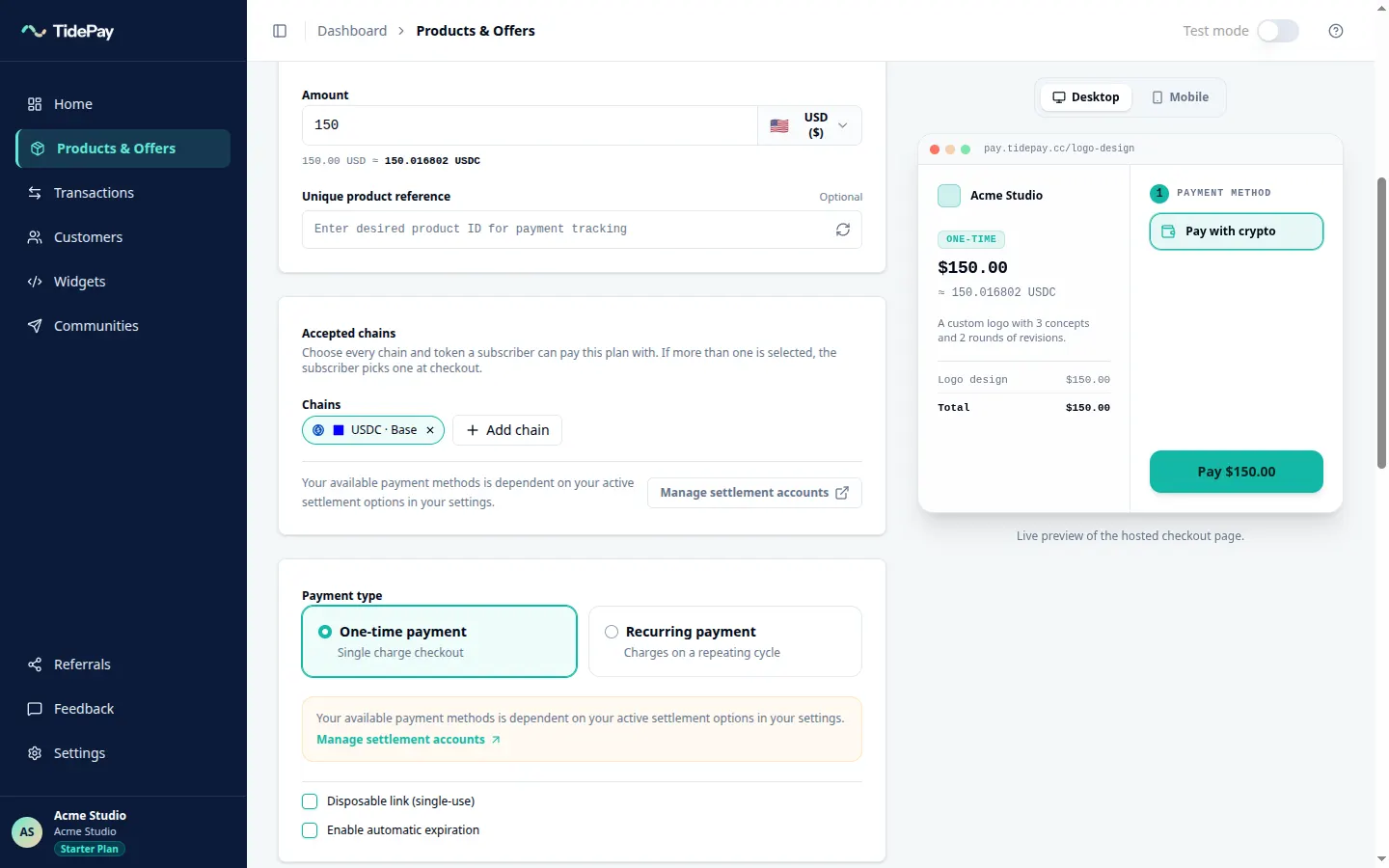
[SCREENSHOT: Create offer — one-time payment, 150 USDC, chains selected, live preview]
Step 3. Choose how the customer can pay (15 seconds)
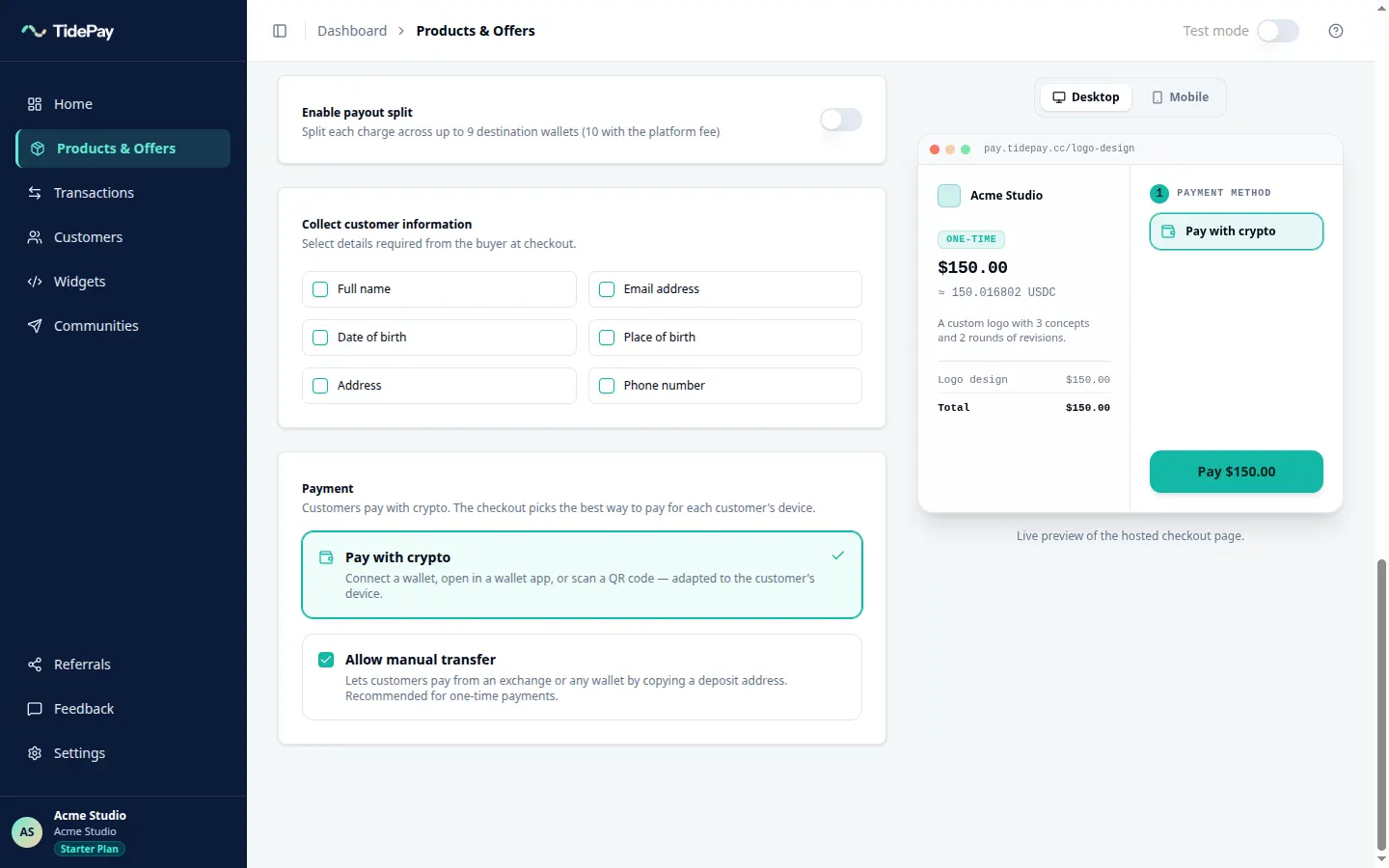
Under Payment, keep Pay with crypto on: the checkout adapts to the customer's device, so they can connect a wallet, open a wallet app or scan a QR code. You can also turn on Allow manual transfer, which lets customers pay from an exchange or any wallet by copying a deposit address.
Step 4. Create and share the link (15 seconds)
Click Create payment link. On the offer's Paylink tab you can copy the link, share it straight from your phone, open it, or download a QR code to print or show in person.
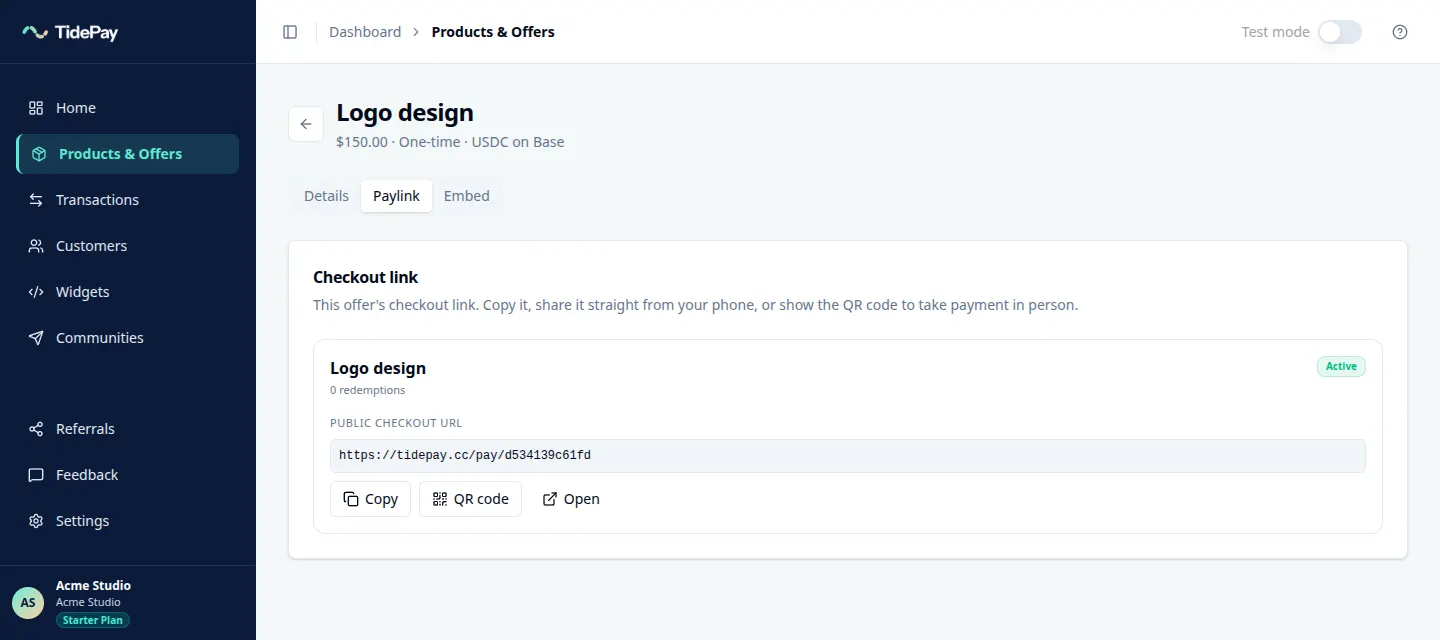
[SCREENSHOT: Paylink tab — Copy, Share, QR code]
That's it. Send the link and you're ready to get paid.
What your customer sees, and where the money goes
They open the link and see your product name, description, image and price on a hosted checkout page. Checkout pages are available in 12 languages.
They pay with crypto. On a computer, they connect a wallet such as MetaMask or Phantom. On a phone, they can open their wallet app directly or scan a QR code. If you turned on manual transfer, they can also copy a deposit address and send from an exchange.
You get paid. The payment goes straight to your wallet. On EVM networks, a wallet payment is sent by the customer's own transaction; a manual transfer goes to a deposit address created just for that payment, which forwards the funds to you without TidePay ever holding the key. On Solana, the customer's own transaction pays you directly.
You see it in the dashboard under Transactions, and, if you use them, a signed webhook tells your app.
On one-time payments, the customer pays the network gas. Fees are low on the supported networks, usually a fraction of a cent to a few cents. There are no chargebacks: once the payment confirms, it's final.
Useful options for your payment link
All optional, all in the same Create offer form or on the Paylink tab:
Option | What it does | Good for |
|---|---|---|
Several links per offer | Each link has its own name, description, redemption limit and expiry | Tracking campaigns separately |
Redemption limit | Caps how many times the link can be paid | Limited drops, 50 seats |
Expiry date | The link stops working after a date and time | Launch-week pricing, quotes |
Single-use link | Works for one payment only | Invoices for one client |
Collect customer information | Asks for name, email, phone or address at checkout | Delivering a product, sending receipts |
Payout split | Sends each payment to up to 9 wallets in the same transaction, by percentage | Paying a partner, co-creator or affiliate |
Features list | Shows bullet points at checkout | Explaining what's included |
Embed | Renders the checkout inside your own site with one script tag | Selling from your own page |
Want to charge the same customer every month? Pick Recurring payment instead of one-time in step 2. See our guide on how to accept USDC subscriptions.
FAQ
Do I need to code to create a crypto payment link?
No. Everything happens in the dashboard: set the price, pick networks and tokens, and copy the link. Developers can also create links through the API.
Which cryptocurrencies can customers pay with?
USDC and USDT on Polygon, Arbitrum, Base, Optimism and Solana, and EURC on Base and Solana. You choose which ones each link accepts.
Does TidePay hold my money?
No. Every payment goes to your own wallet. TidePay is non-custodial.
How much does it cost?
1% per successful payment, with no monthly fee and no setup cost. The customer pays the network gas on one-time payments.
Can a customer pay from an exchange?
Yes, if you turn on manual transfer. The customer copies the deposit address and sends the exact amount from an exchange or any wallet.
Can I accept payments in person?
Yes. Download the link's QR code and print it, or show it on your phone for the customer to scan.
Create your first payment link
Create a free TidePay account and send your first link in two minutes. See all payment link features.